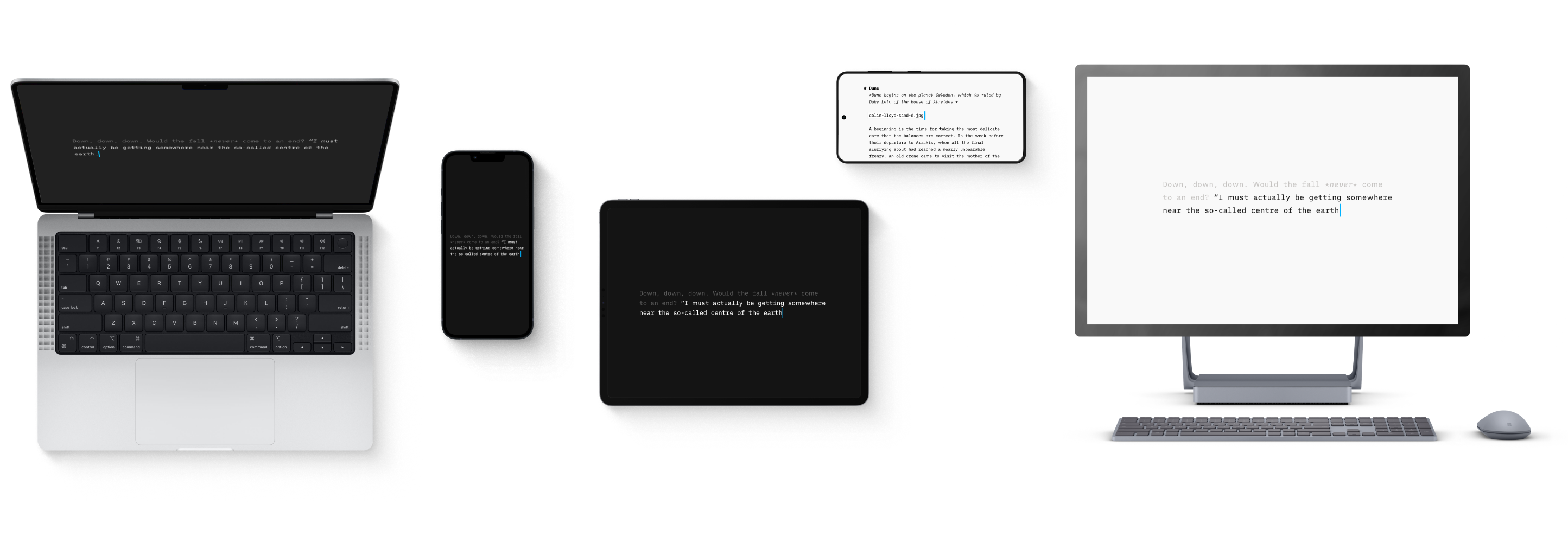
 Basics
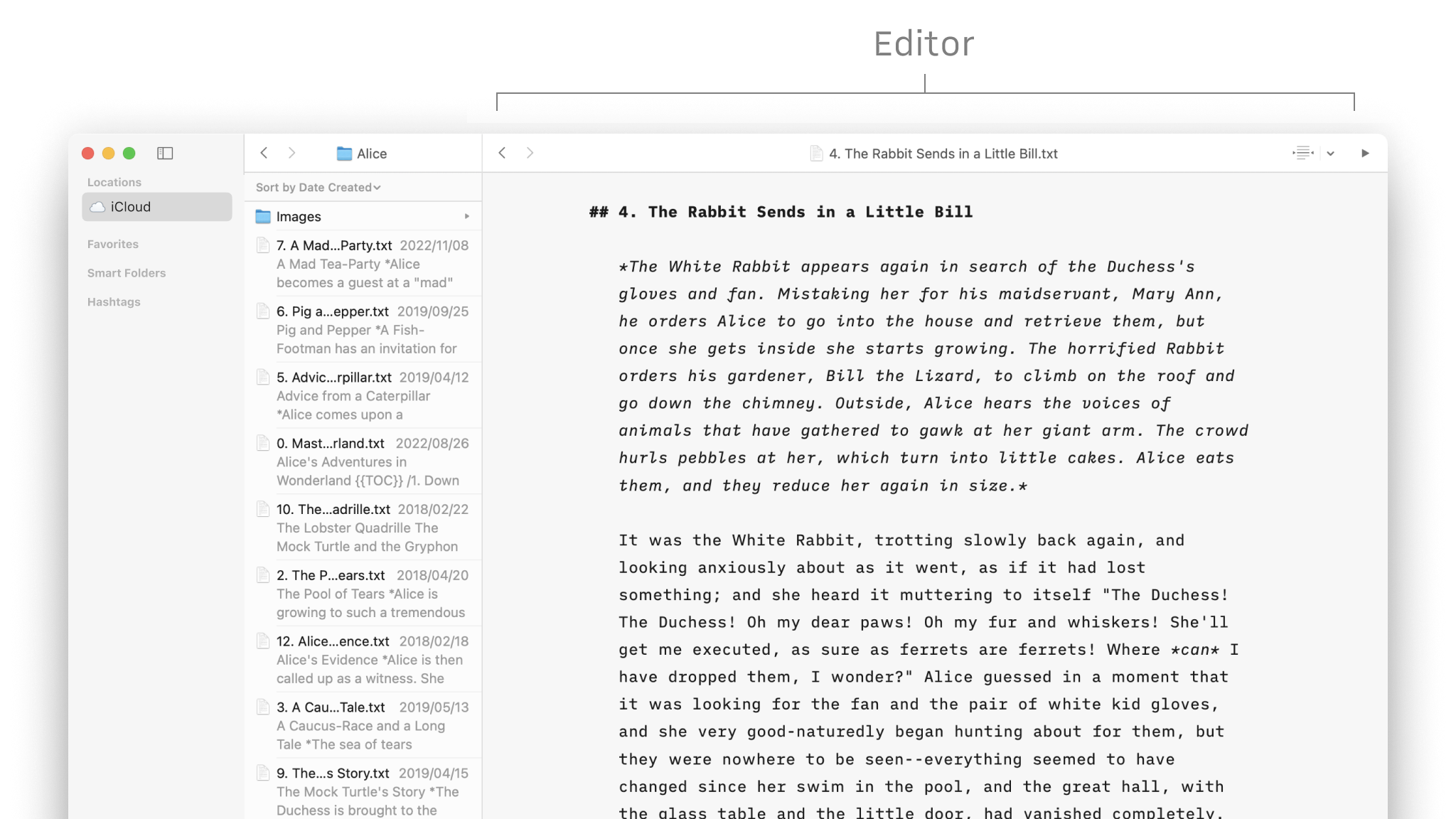
Core Components
A quick tour of the interface of Writer for first time users.
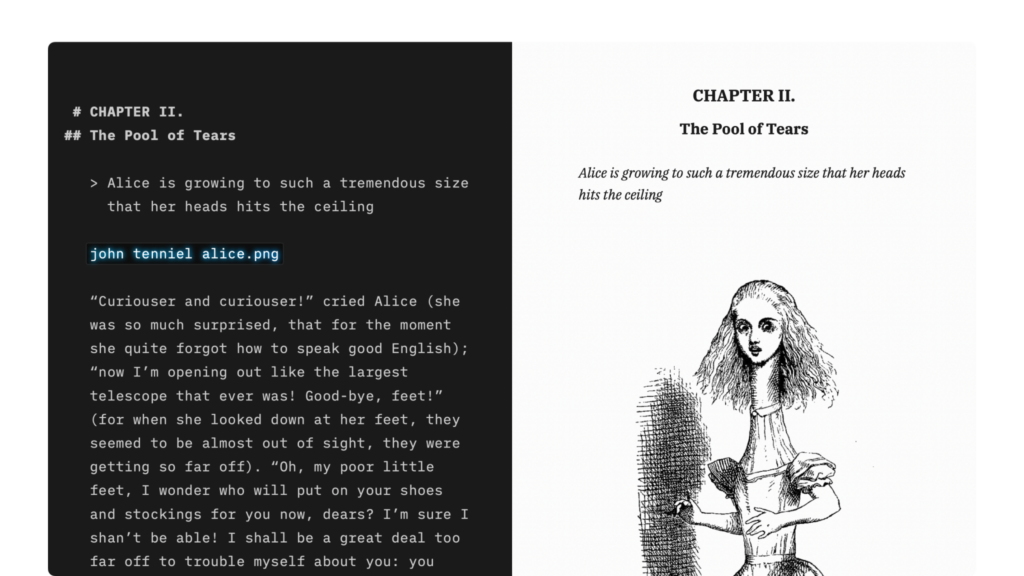
Markdown Guide
Apply basic formatting by adding a few punctuation characters.

Features
An overview of our features on different platforms.
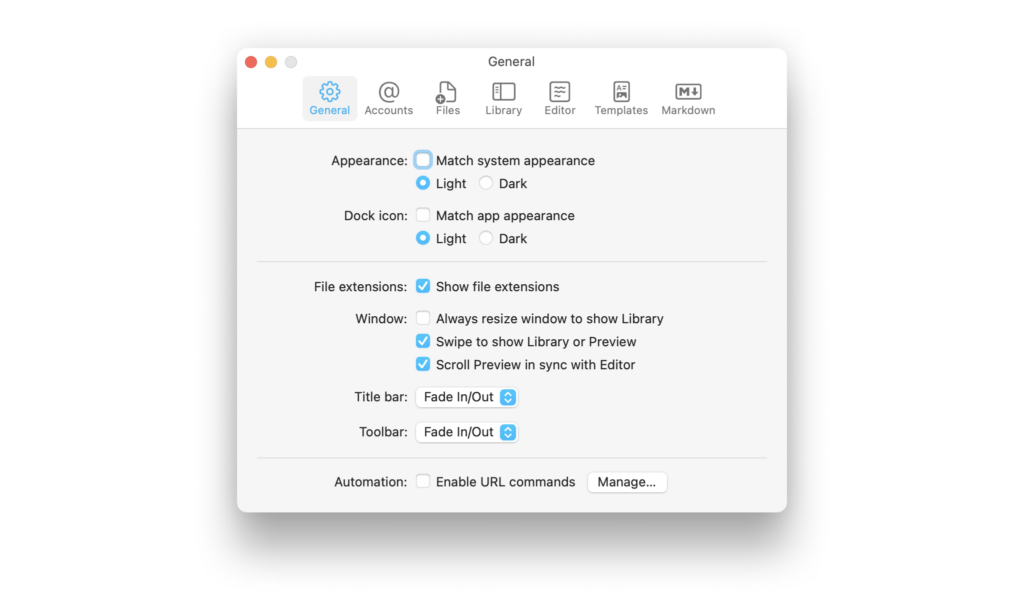
Settings
A wide range of options to fit the various use cases, professional and personal needs.
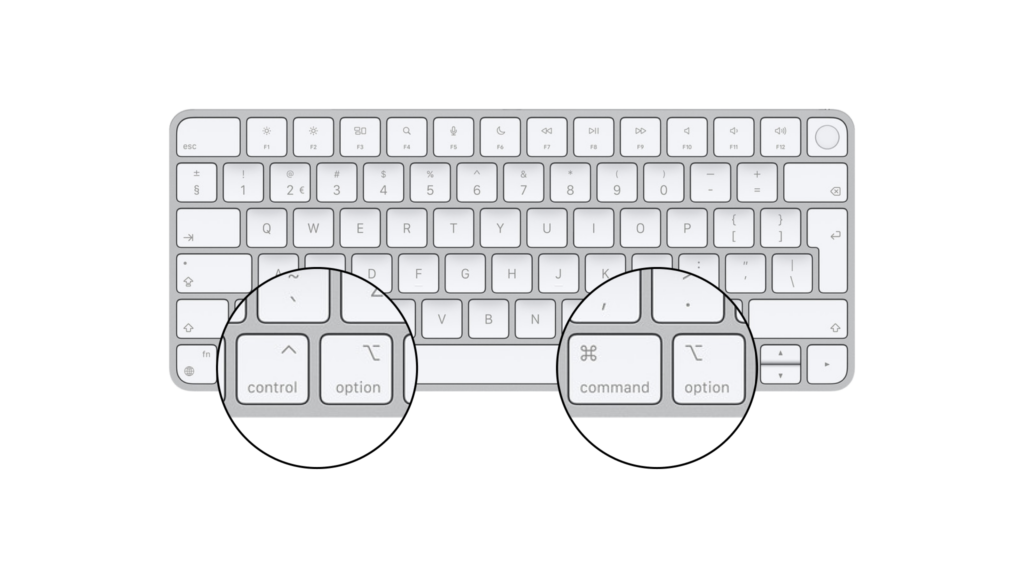
Shortcuts
Knowing keyboard shortcuts will greatly improve your performance with our app.

Languages
Supported languages for the localization, spell-check, Syntax Highlight and Style Check, per platform.
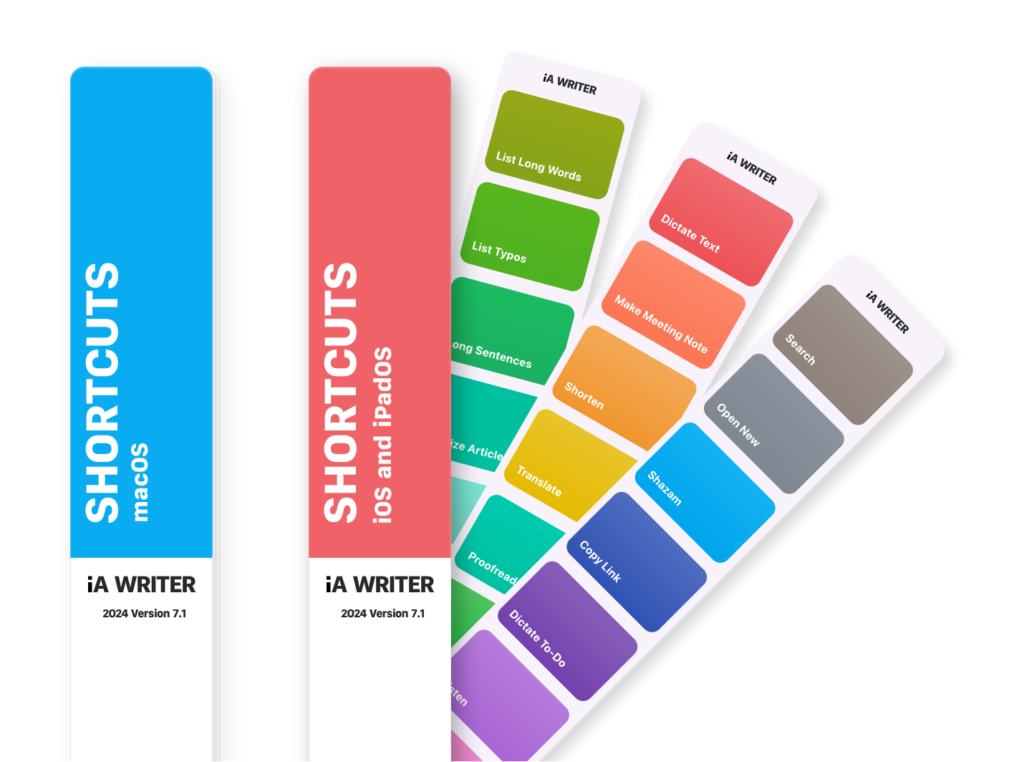
Apple Shortcuts
Shortcuts are a powerful automation tool that saves time and helps you focus on writing by avoiding repetitive busywork.
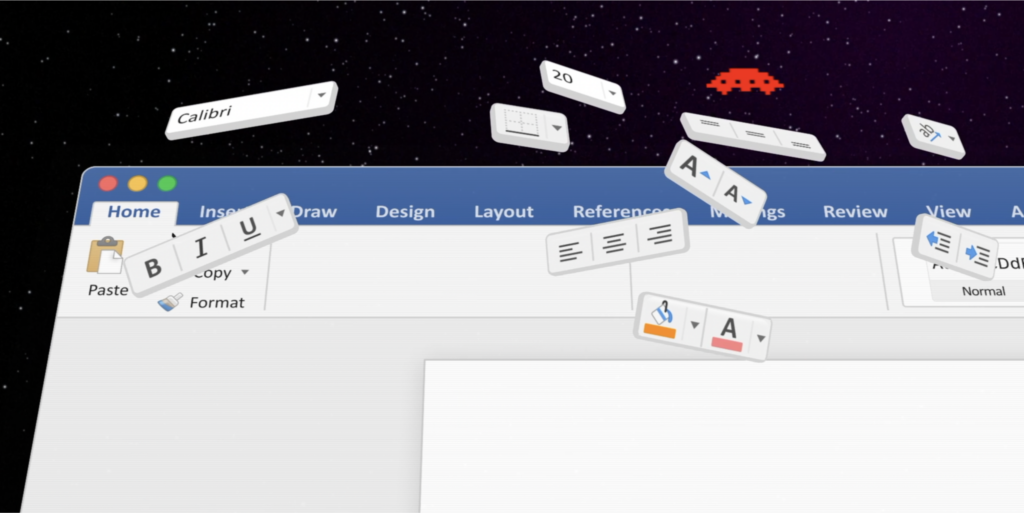
Writer vs Word
What are the advantages of a focused writing app like iA Writer compared to Microsoft's WYSIWYG classic?

Writing Tips
Six rules for better writing, a rundown on how to use parts of speech, lectures on style, and the elements of style.
 Library
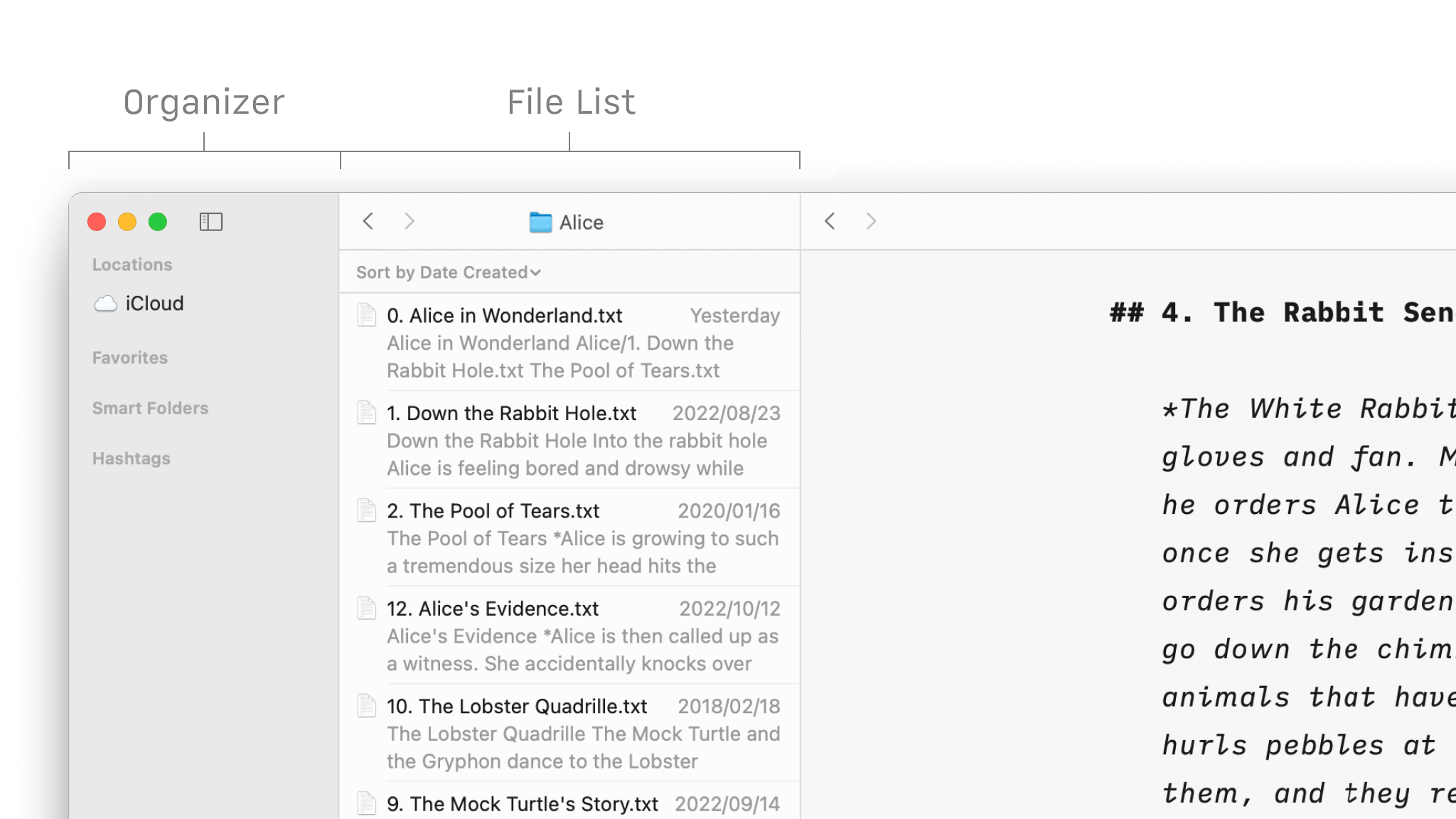
Organize Your Files
Folders, favourites, hashtags and more, discover all the ways to organize your documents in Writer.
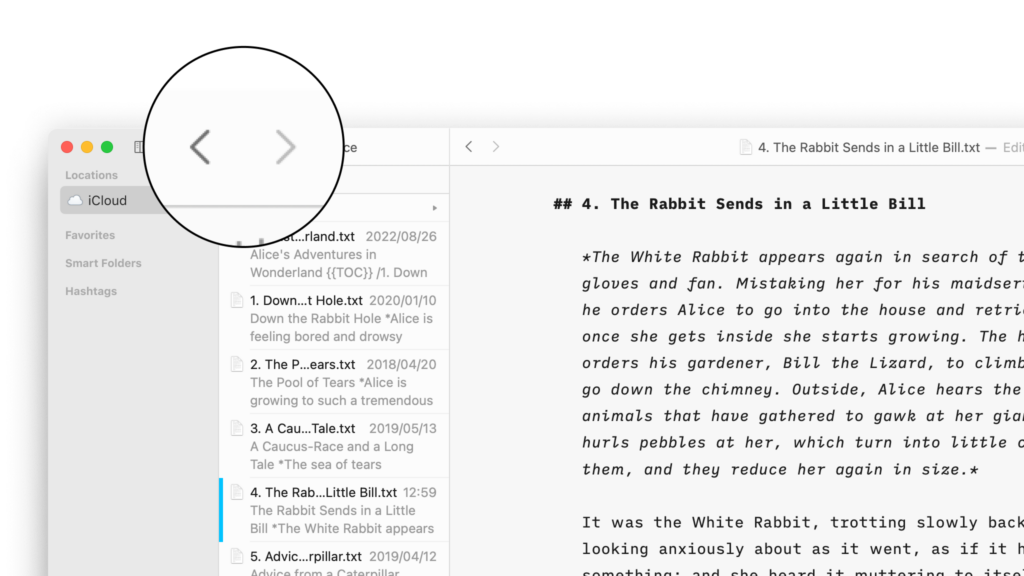
Navigate Your Files
Create, search and navigate through your documents in the Library.
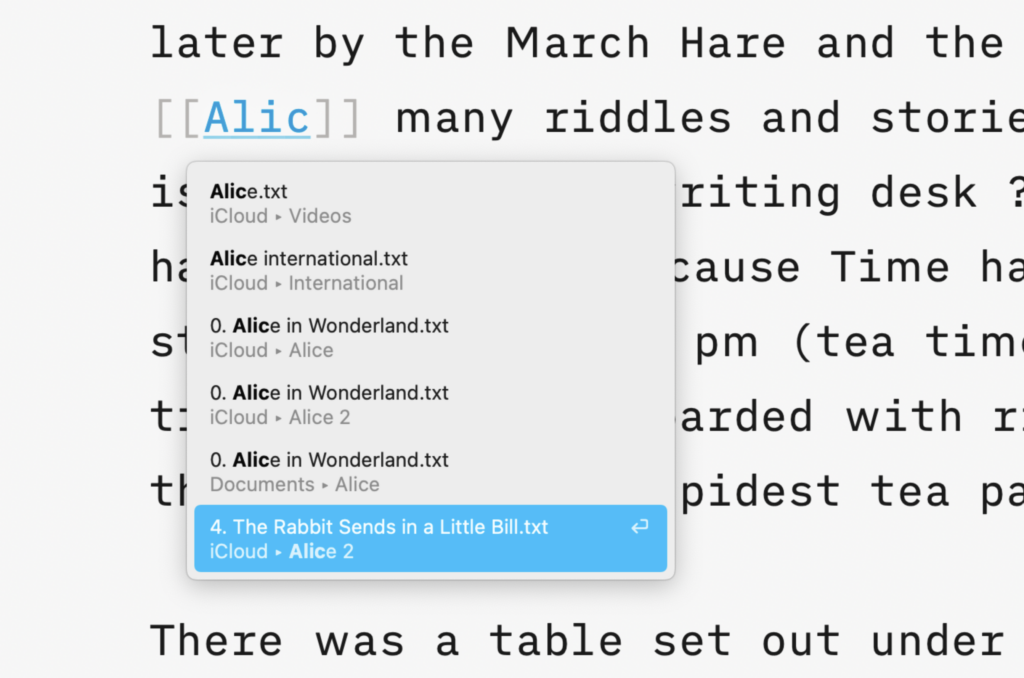
Wikilinks
Connect, browse, and rediscover your writing.
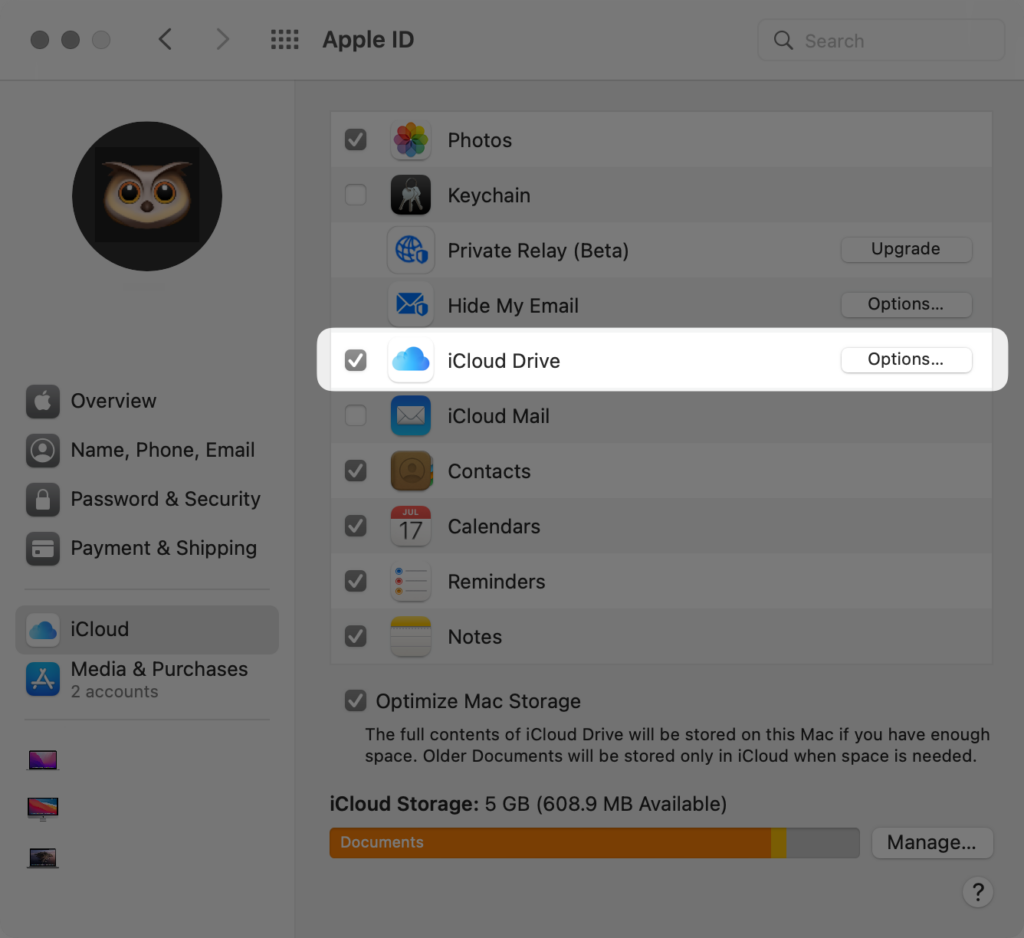
Cloud Storage
Having access to your documents on multiple devices makes life easier.
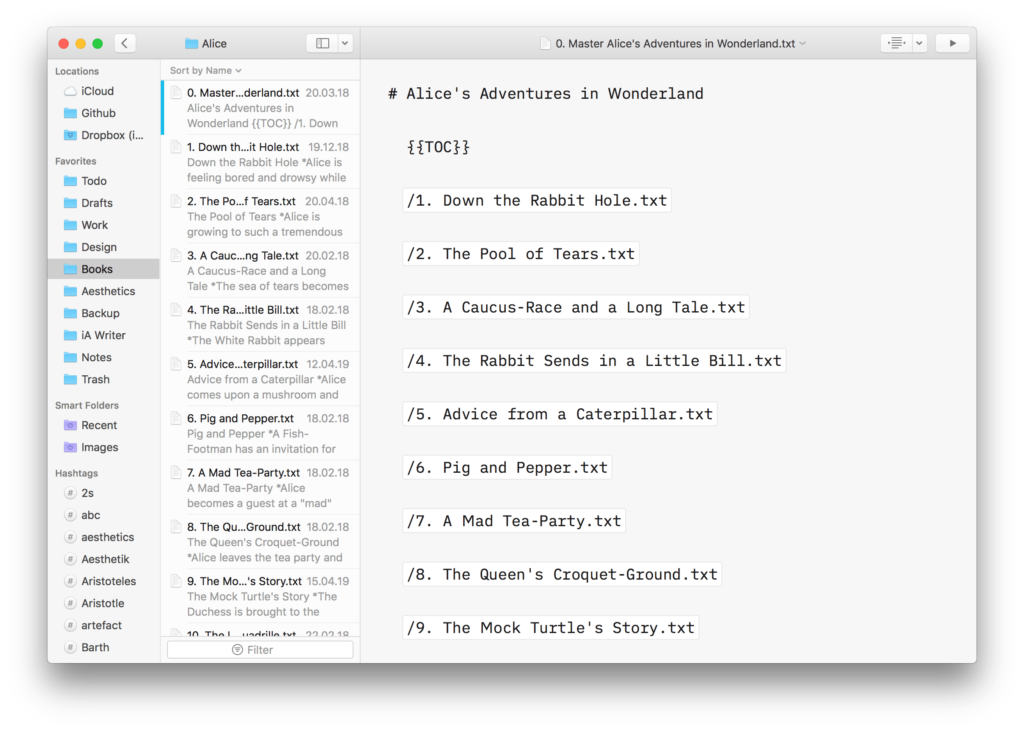
Content Blocks
Include images, comma separated tables, text files and code as blocks of content in your documents.
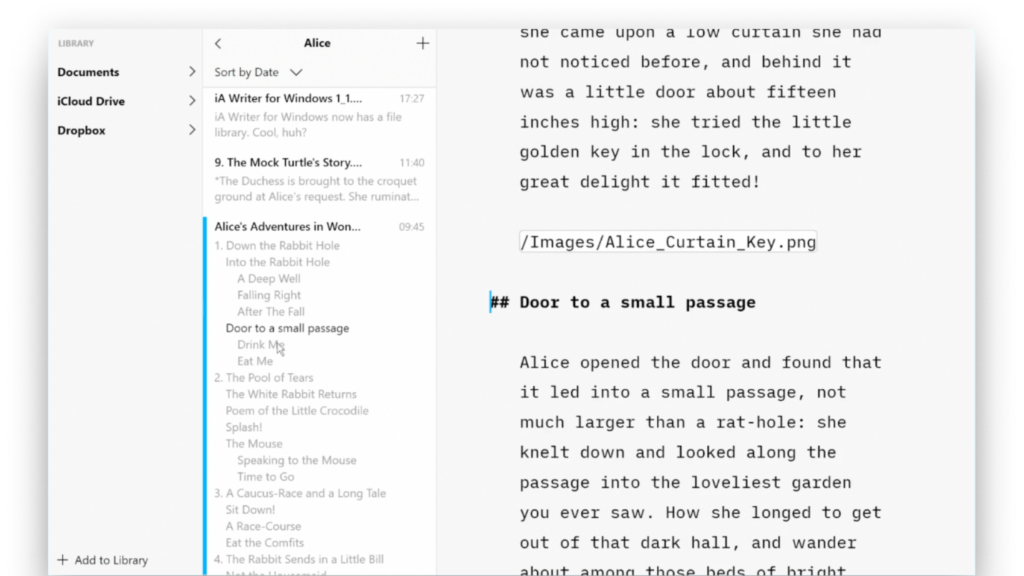
Outline
Writer for Windows comes with two powerful features for working with long or complex documents.
 Editor
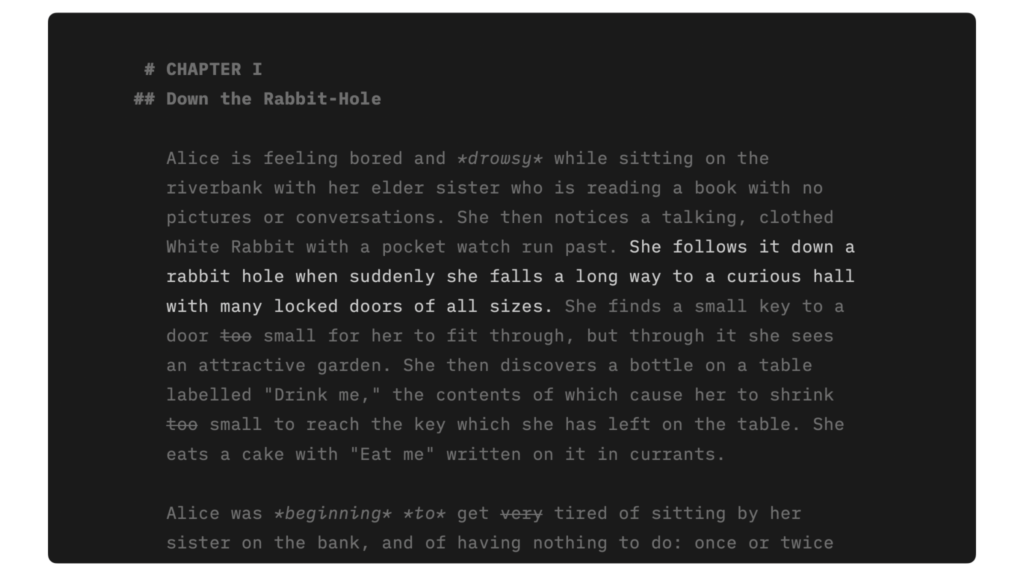
Focus Mode
Shut down distractions. Focus on the sentence or paragraph you’re currently working on.
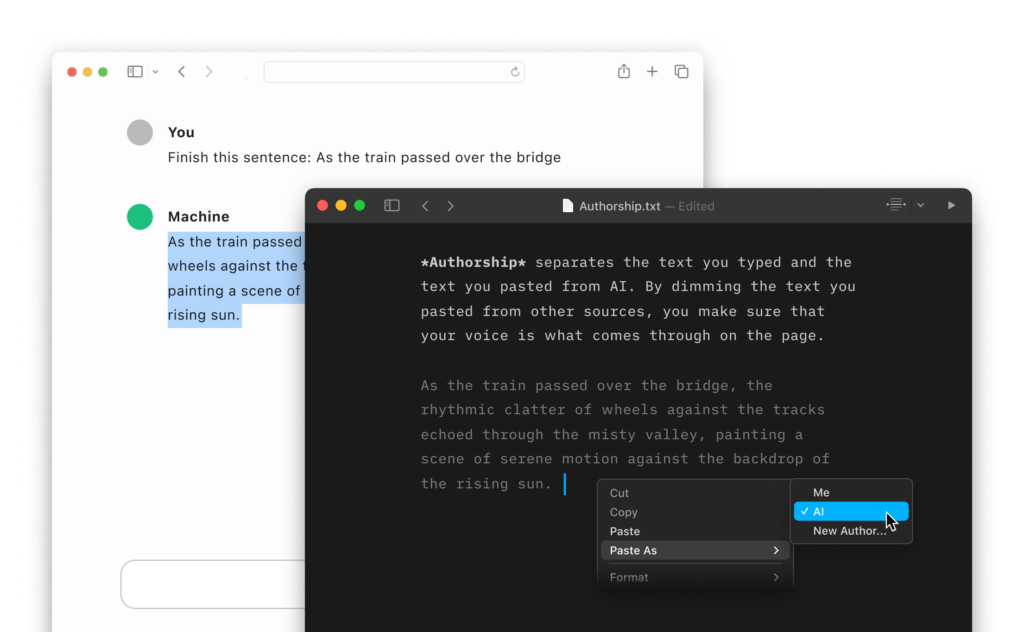
Authorship
Highlight the text you craft yourself and keep track of your sources, artificial or natural.
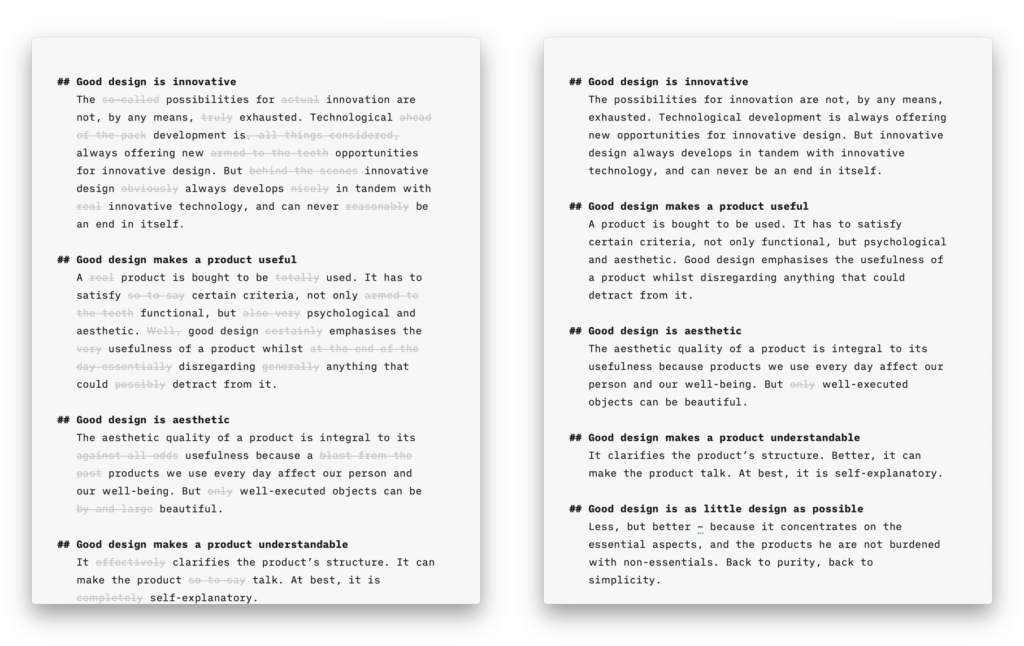
Style Check
A personal editor-in-chief on your device, carefully reviewing your text for redundancies, clichés, and filler words.
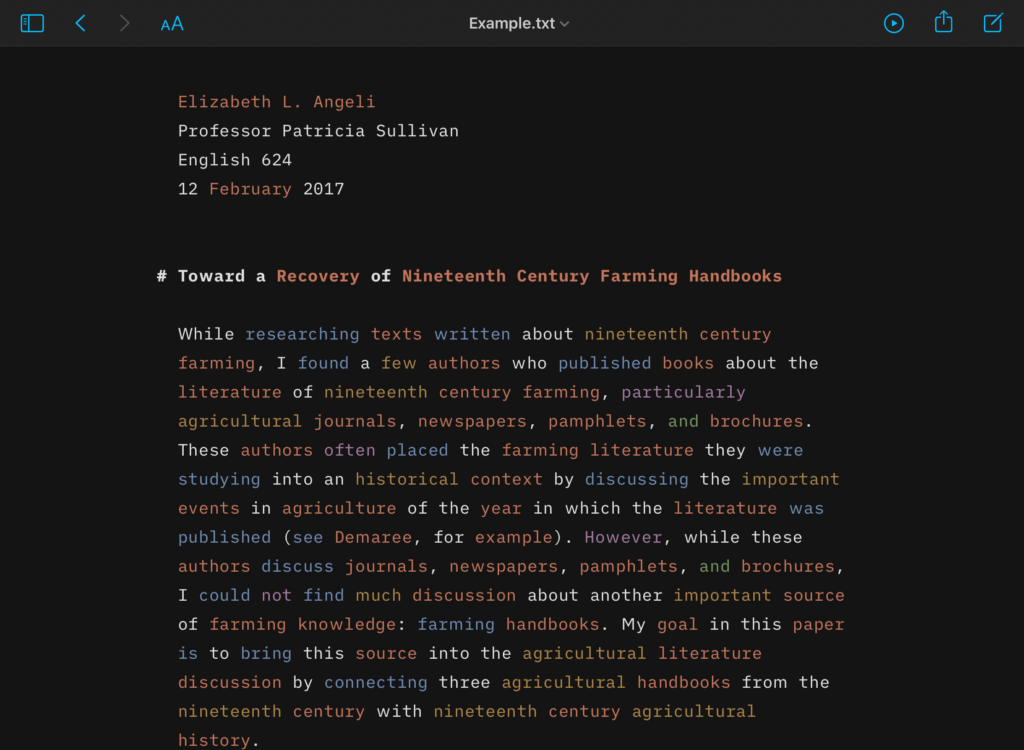
Syntax Highlight
A more structured view of your document will help you improve your writing style.
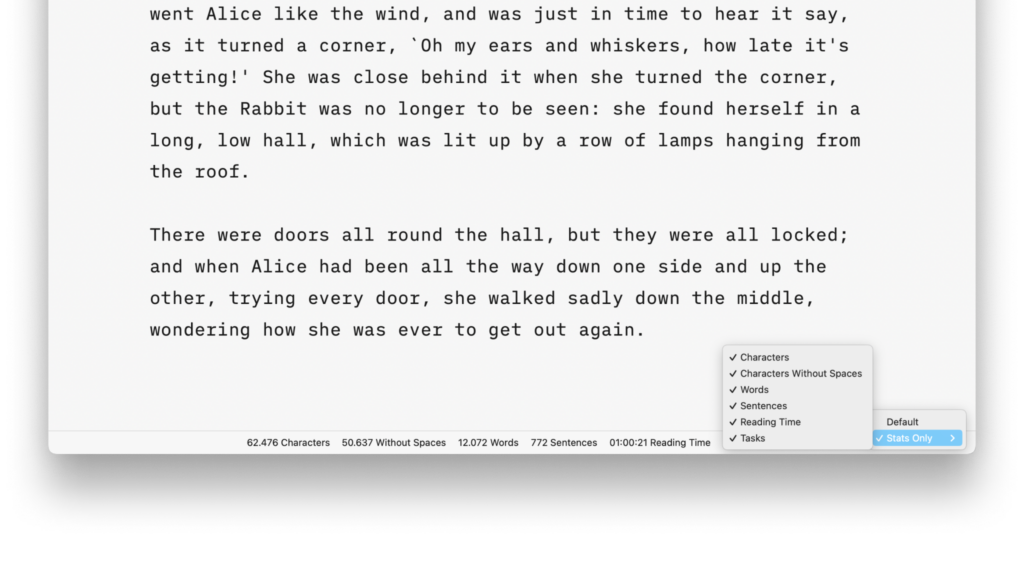
Stats
From word count to estimated reading time, document stats help you stay on top of things.
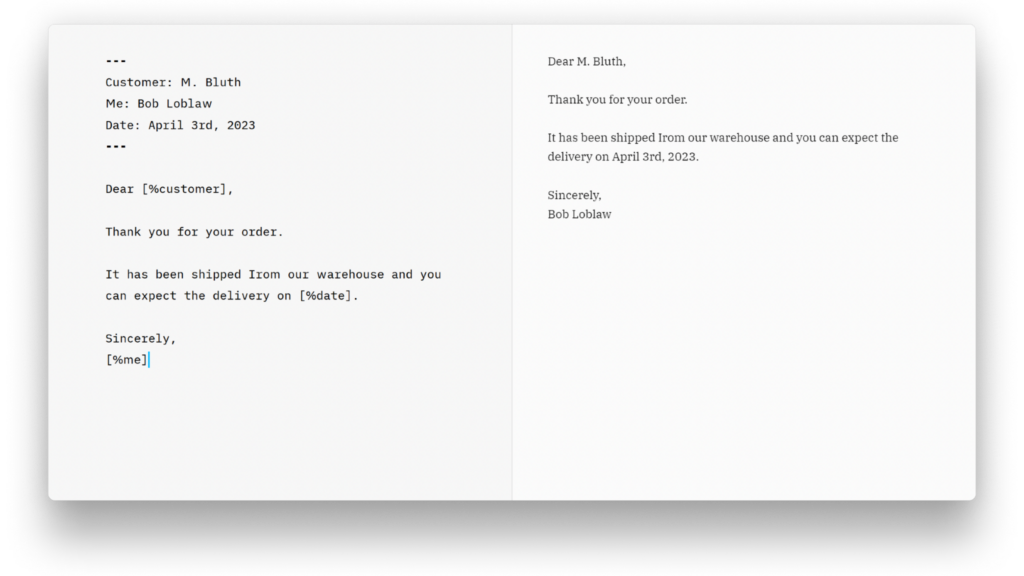
Metadata
A simple key-value format for storing additional information about a document, only visible in the Editor.
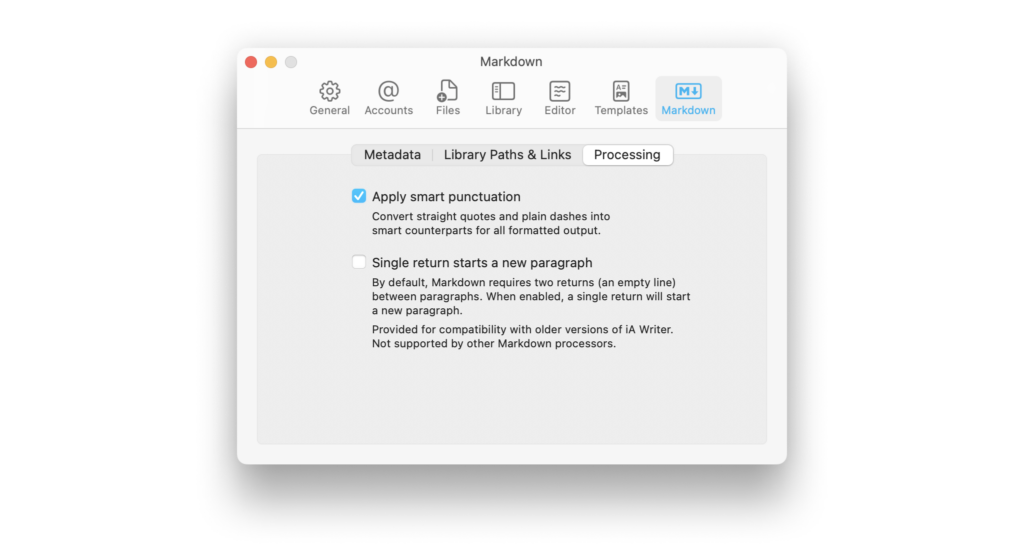
Smart Automation
Auto text completion and transformation: focus on your writing, without getting bogged down by minor details.
 Preview
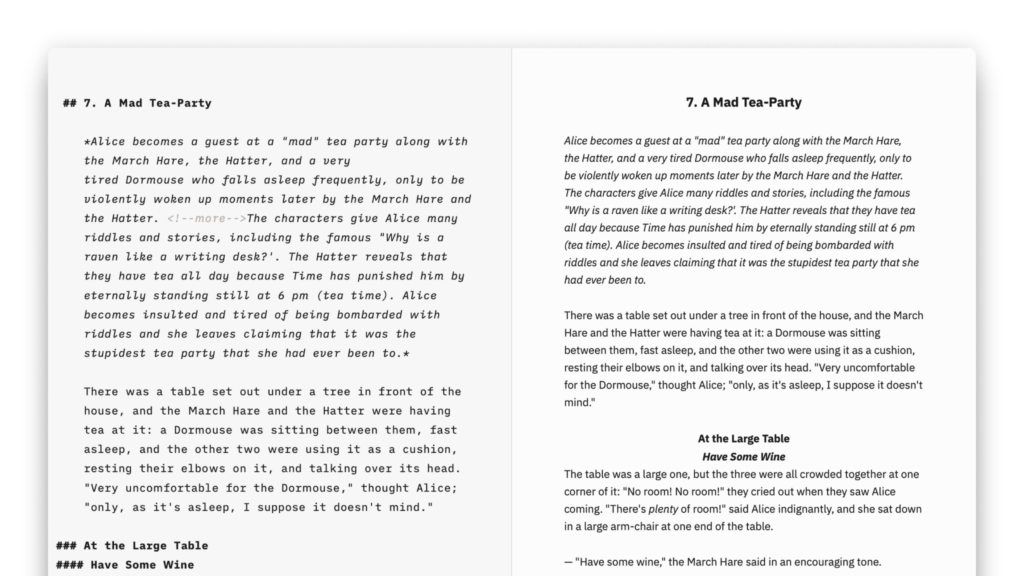
Modify the Preview
To see your formatted text and to change its look, open Preview.
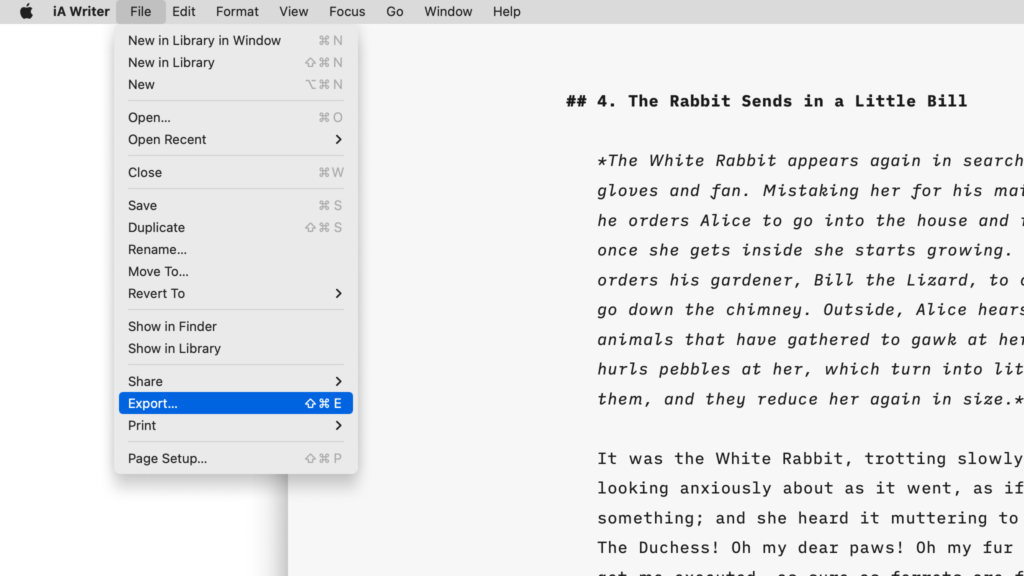
Export Share Print
Learn how to export, share and print your documents
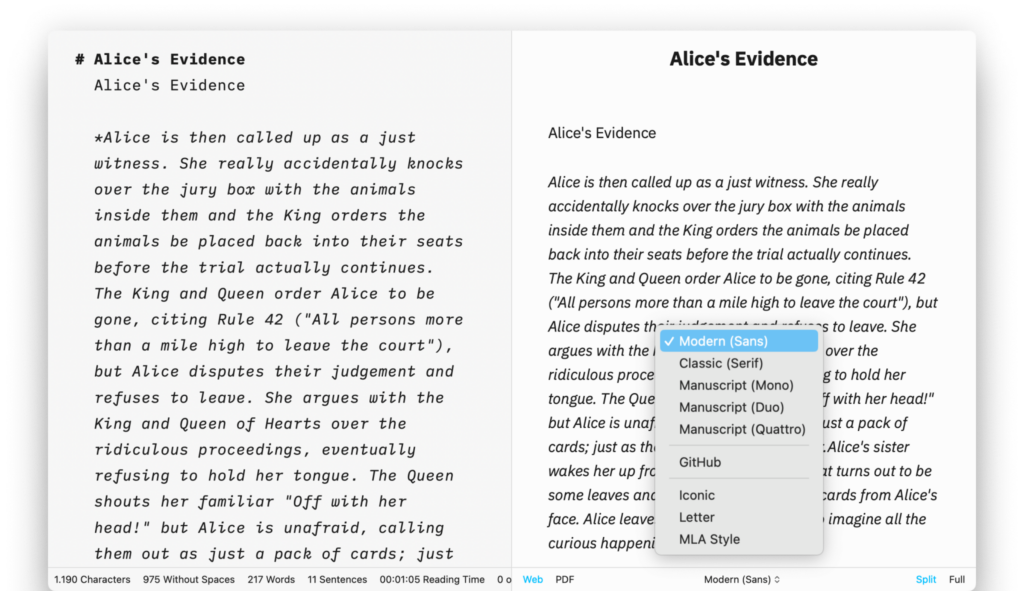
Templates
Preview, create PDFs, and print documents with iA Writer's templates.
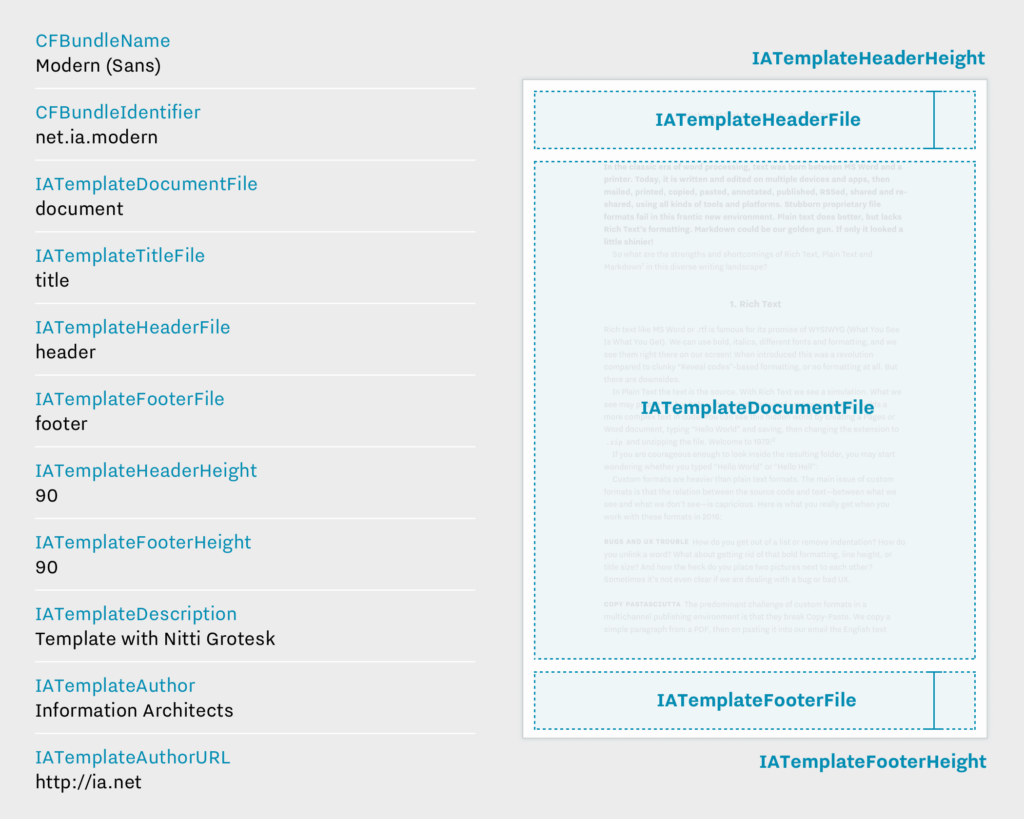
Custom Templates
Create iA Writer templates in your own style.

Blog
How to to draft blog posts before uploading them to your website.
 Help
Help

FAQ
Below are answers to common questions. Everyone is special, but most questions that we get overlap.

Troubleshooting
Here are some things you can do if iA Writer acts in unexpected ways.
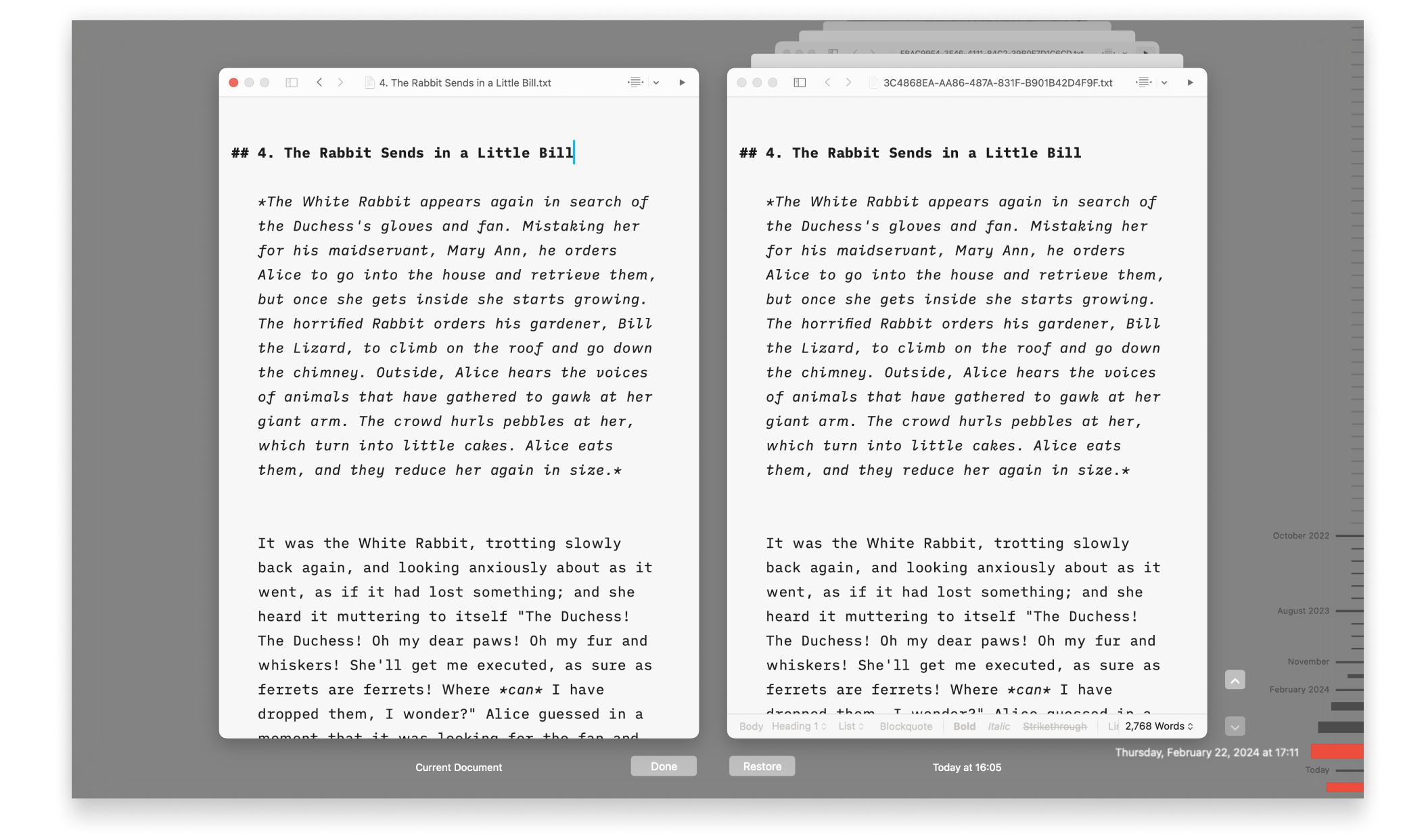
Backups and Recovery
Lost progress in a document? Regret deleting that paragraph? No problem!

iCloud
iA Writer is file storage provider agnostic but we recommend iCloud for the best experience across most devices:
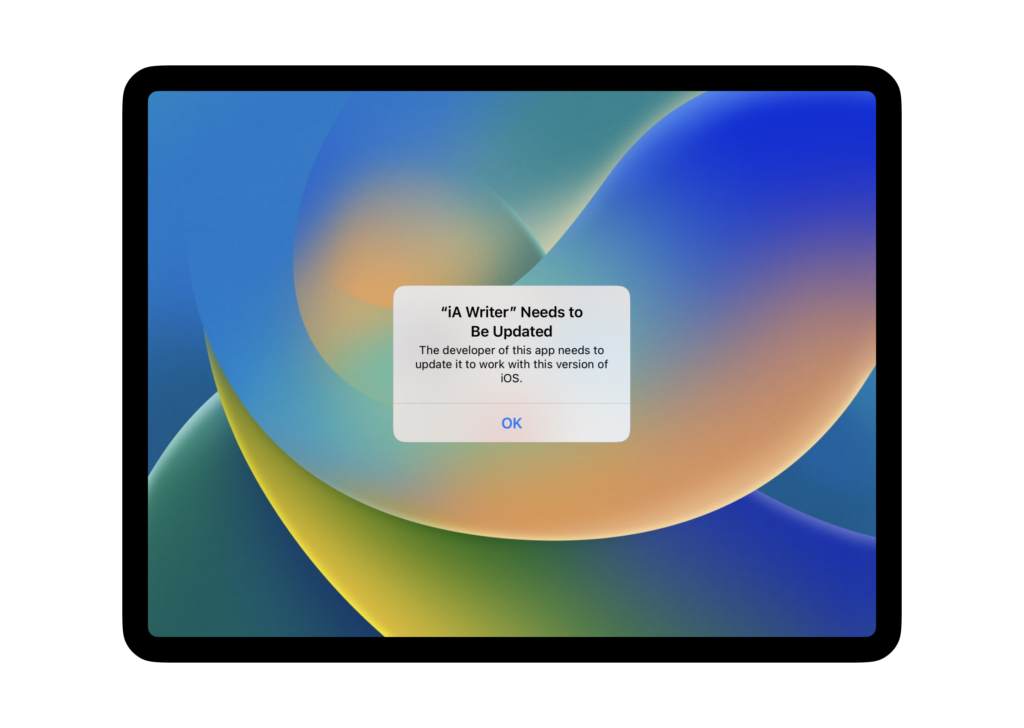
Legacy Apps
Whenever possible, troubleshooting steps are listed here for iA Writer Classic on macOS & iOS and Writer 1.5.2 for Android.
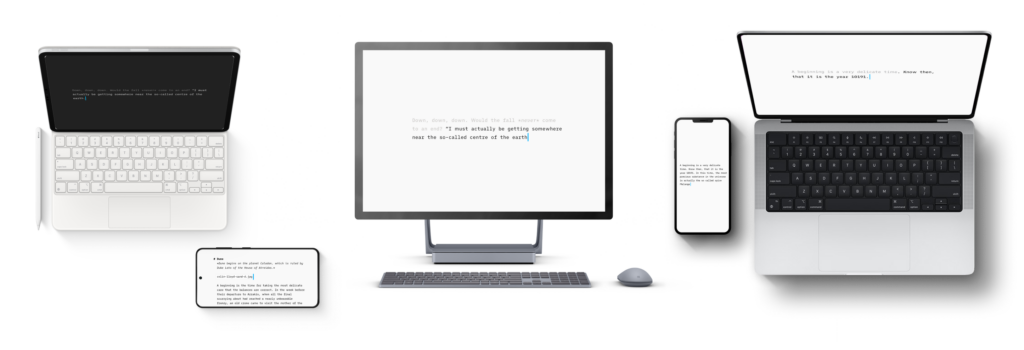
Version History
Scroll through the history of our apps, version by version, platform by platform, update by update.

Privacy Policy
Which information do we see, and what do we leave untouched?

Accessibility
We want our products to be enjoyed by the widest possible audience.
URL Commands
Open iA Writer from other applications on both macOS and iOS, and perform specific actions on opening.